Connect your clients’ Fidelity accounts into IncomeConductor.
Generate a Header Code
Note: If you already have a header code, skip to the next section.
In the Linked Providers area, click on Fidelity:
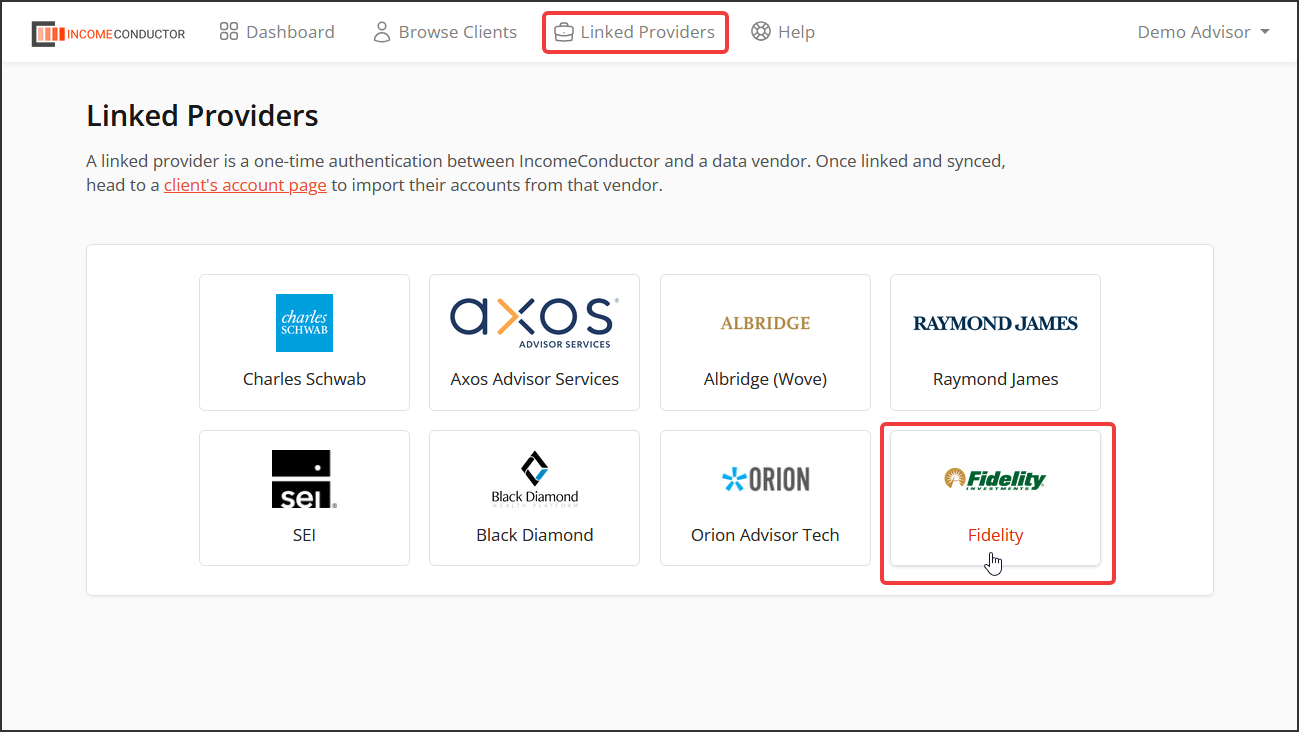
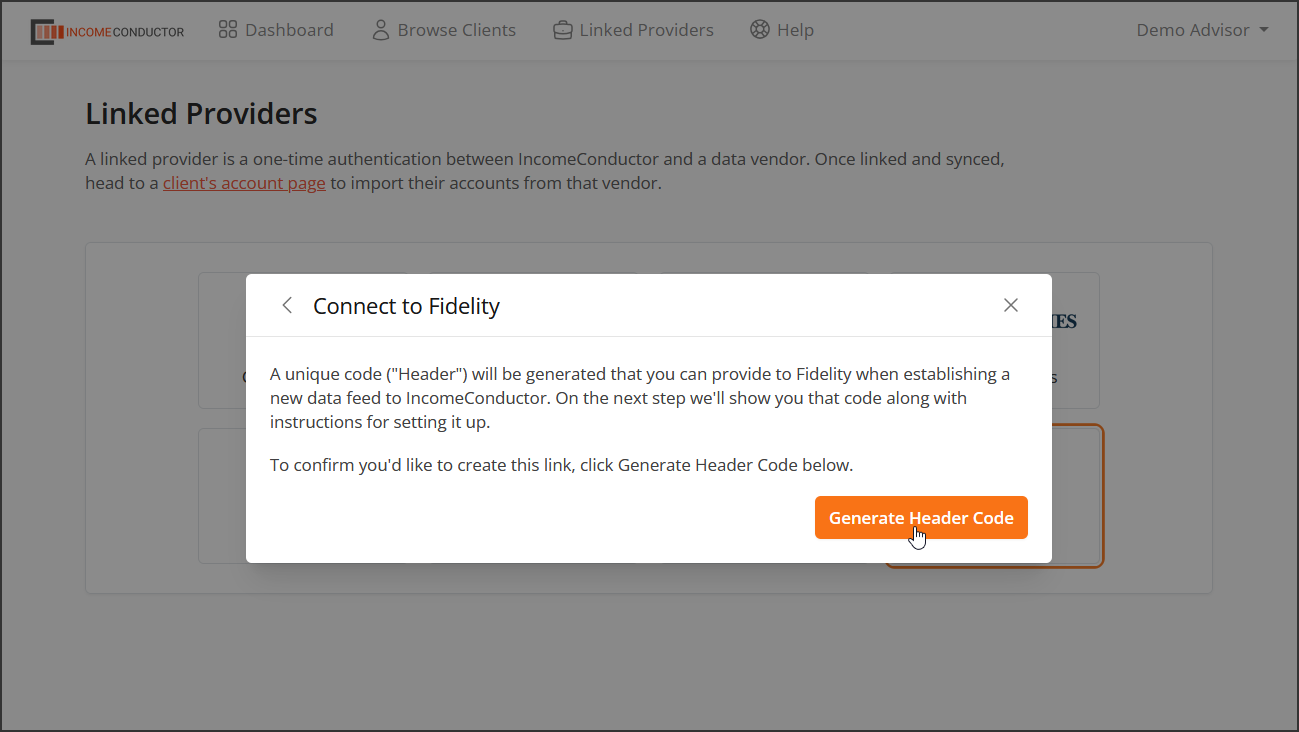
You will be prompted to generate a header code that you will provide to Fidelity to authorize the file transfer:
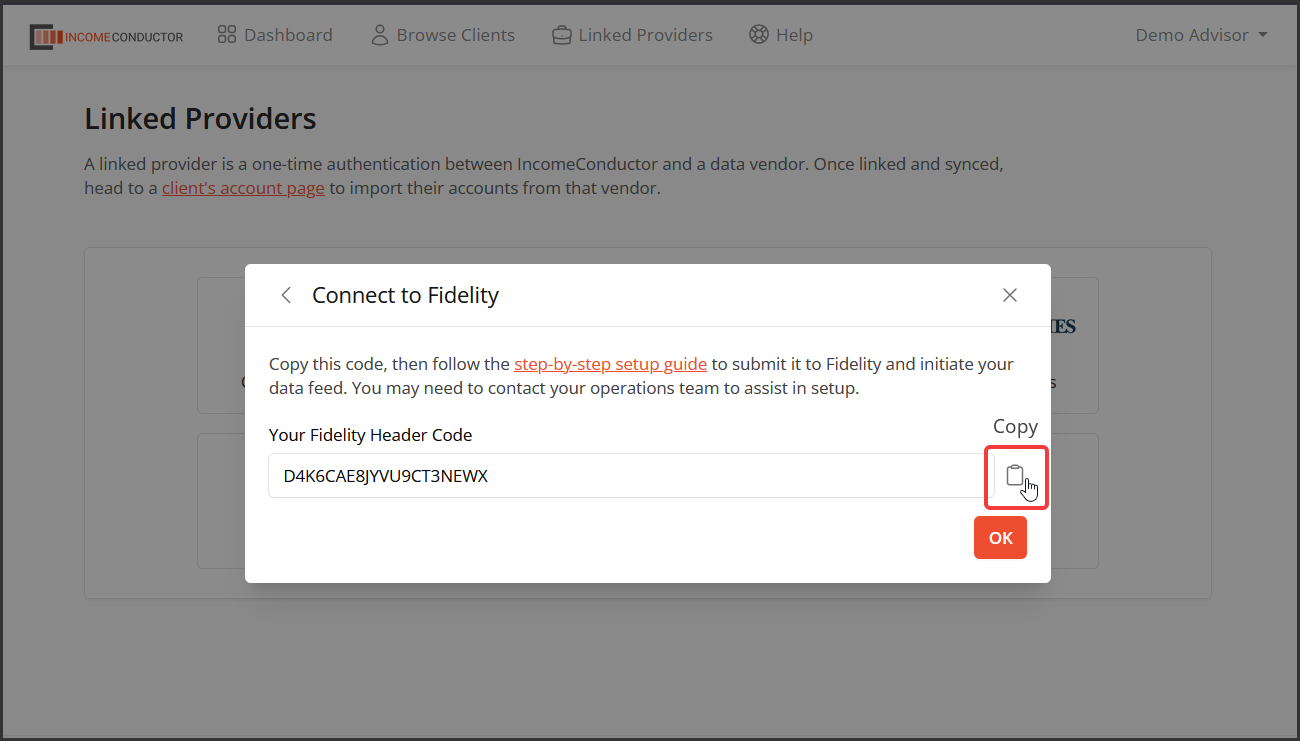
Click the clipboard icon to copy the header code:
You will see the pending Fidelity connection appear in the list of providers. By default, the nickname will include the last four characters of your header code. You can rename or delete this connection from within this table row.

Add any time, you can select Setup Instructions to view and copy your header code. Note: there is no need to generate additional header codes unless you will be syncing accounts from multiple G Numbers. If there appears to be an issue with your connection, contact us and do not delete your connection or generate a new header code unless instructed to do so.

Submit Your Header Code
Follow the steps in the PDF guide linked below based on your relationship with Fidelity.
Once completed, allow 1-3 business days for the request to be processed and the files to begin arriving. Once live, account balances should update on a nightly basis.